




[...] The business card scanner works reliably and accurately recognizes the content of printed cards, making contact management significantly easier. This app is an excellent support for working efficiently.

Google PlayStore User
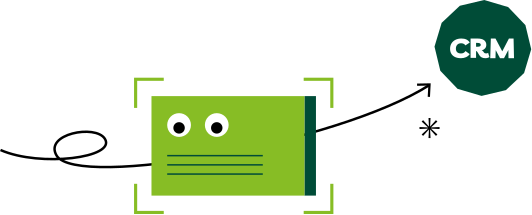
A business card from a customer appointment or trade show is useless until the contact information is in the CRM. Scan it with your smartphone directly after the conversation and the data is captured accurately within seconds.
The fastest way is to use a scanner app on your smartphone, many of which are free. It only takes three steps from taking the photo to having a complete CRM contact.
Photograph the card with your smartphone directly after the conversation.
Text recognition automatically captures name, position, company and address.
The contact is checked for Duplicates and missing details and then transferred in a structured way to your contact list, to Outlook or to your CRM system.
Yes, you can scan business cards with your Apple iPhone (iOS) just as you can with an Android smartphone. The BusinessCards app from snapAddy is available for both iOS and Android: download the app for free, photograph the business card and the contact information is recognized automatically, no matter which device you use.
Which free app can scan business cards?
BusinessCards automatically reads every business card – whether paper, NFC or digital – and turns it into a complete, error-free CRM contact.
Yes, definitely with BusinessCards from snapAddy. Your data is stored on certified servers in Frankfurt am Main, within the EU. Our information security management is certified to ISO 27001, and all processes are GDPR-compliant. This also meets strict compliance requirements, such as those demanded in regulated industries.
Our latest awards from OMR Reviews and G2.



With batch processing in BusinessCards, you photograph several cards one after another. You then export all scanned contacts together.
Scanning is only half the job. Depending on how you work, the contact information captured during the scan needs to be saved in different places. We show you four possible paths in BusinessCards.
Whether CRM system or marketing automation, BusinessCards works seamlessly with all common systems.
Poor hall Wi-Fi at trade shows or weak reception on the road: with BusinessCards you can scan business cards even offline. The data is securely cached and synchronized as soon as an internet connection is available again.
[...] The business card scanner works reliably and accurately recognizes the content of printed cards, making contact management significantly easier. This app is an excellent support for working efficiently.
Just one word: Wow! I didn’t expect that. The app correctly assigns phone, fax, and mobile numbers — even when there are only icons on the card — and even recognizes the correct salutation. So far, everything has been captured flawlessly. Thank you!
Even very unusual business cards are captured accurately and without errors! On top of that, data security is excellent. If I could give 10 stars, you’d get them from me... 👍😎
[...] A special highlight is the business card scanner, which digitizes printed cards flawlessly. This eliminates the need to enter contact data manually, saving me a lot of time. Overall, a highly practical app.
Download BusinessCards from snapAddy free of charge from the Google Play Store or the App Store and get started right away!


At a trade show there are two different tasks: spontaneous contact exchange on the move and the structured capture of all visitors at your own booth.

When you and your team are exchanging contact information on the move at a trade show, BusinessCards has you covered.
If you run your own trade show booth and want to document every visitor conversation, snapAddy VisitReport is the right choice.
We are also happy to answer all your questions on an individualized basis. Simply book an appointment and get to know our solutions better.
BusinessCards Pro Exported contacts directly to popular systems such as Salesforce, HubSpot, Microsoft Dynamics or SAP. You can find all integration options here.
The AI recognizes names, addresses and contact information in more than 45 languages and scripts and automatically assigns them to the correct fields in your CRM system.
Yes. All scanned contact information is transmitted in encrypted form and processed exclusively in EU data centers.
Before the Export, BusinessCards automatically checks whether the contact already exists in the CRM and suggests merging instead of creating a new record.
BusinessCards transfers all available information and highlights missing fields so you can quickly add them if needed. You can also use DataAgents from snapAddy, our workflow Automation platform, which automatically supplements missing company data and email addresses for you.