New in BusinessCards: contact lists that bring order to your workday.
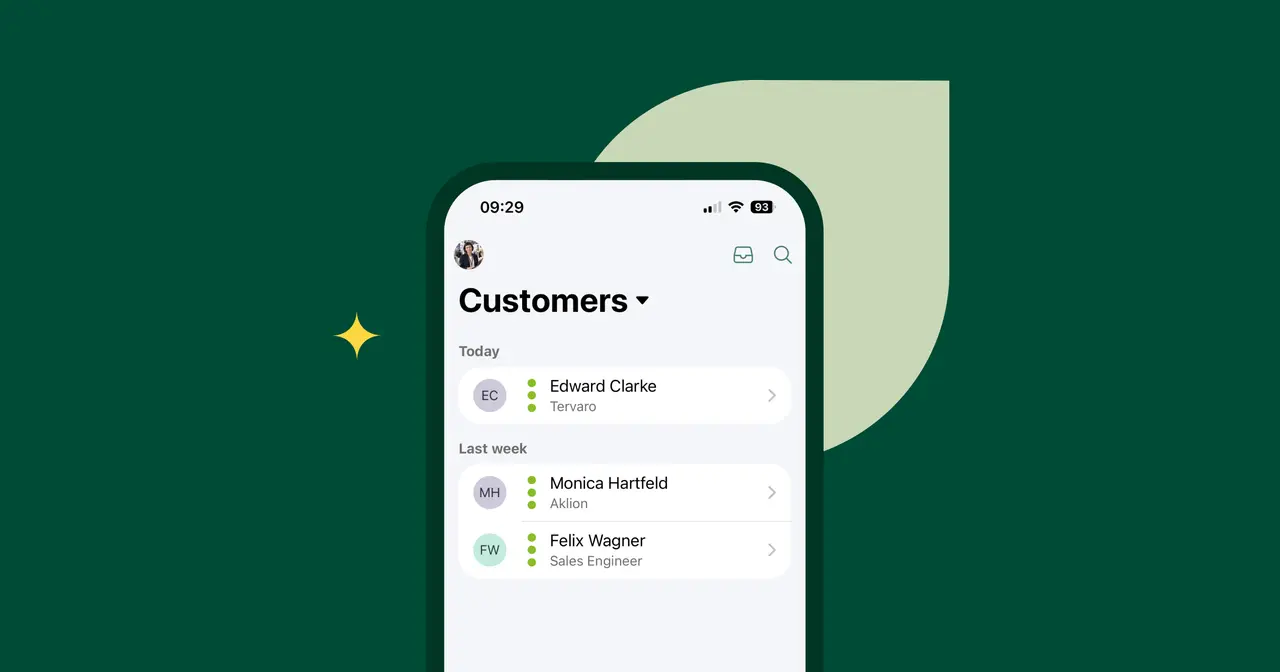
A customer meeting on Monday, an industry networking evening on Wednesday, a trade show on Friday with two dozen new faces. Scanning the business cards takes seconds. But then what? That’s exactly where the new release comes in: BusinessCards now lets you organize your contacts in lists.
Another highlight: your contacts are no longer stored on your phone but centrally in your snapAddy account. We asked Myriam Himmel, Team Lead UI/UX at snapAddy, what that means for everyday work.

Key points at a glance:
- Custom contact lists – for example by customer, region, or project – help you find contacts right where you need them.
- As an admin, you can create shared lists in the snapAddy dashboard and share them with selected users and user groups.
- Contacts are stored in your snapAddy account and synced automatically.
- Contacts sorted into the wrong list can be moved to the right one in bulk.
- A contact’s detail view now puts the most important information first: the ways to get in touch.
- The update is rolling out to all users gradually.
The new BusinessCards in 40 seconds.
A long list isn’t a system.
Myriam, what’s the most important new feature in BusinessCards?
“The most important additions are contact lists and sync. Our customers can now organize their contacts in their own lists, and those lists are stored securely in their snapAddy account. If you’re on the road a lot, you collect business cards in all kinds of situations: customer meetings, trade shows, conferences, partner meetings. Until now, everything ended up in a single view, and when it was time to follow up, you had to go searching. That’s exactly the pain point the new contact lists address.”
What does that change in practice?
“Users can now sort contacts into lists as they capture them. After a trade show, they simply open the right list and work through it from top to bottom, without contacts from other meetings getting in the way. It sounds trivial, but it saves time after every event and makes sure no one who still needs a follow-up slips through the cracks.”
What structure looks like day to day.
What kinds of lists make sense?
“There’s no one-size-fits-all answer. The right lists are the ones that fit the way you work. In sales, one list per region or customer often works well: before your next meeting, you can see at a glance who you already know there. If you regularly attend conferences or networking events, it’s best to create one list per event, so all your new contacts are in one place afterward. And for ongoing projects or RFPs, a dedicated list keeps the people involved from getting lost among your other contacts. The only thing that matters is selecting the right list before you scan. Then the contact goes straight to the right place.”
How do I create a list?
“When you sign in for the first time, the app creates a default list called ‘BusinessCards’. You can create more lists right in the app – it only takes a few seconds.”
Here’s how it works:
- Open the list menu: Tap the name of the current list at the top.
- Switch lists: Select the list you want to view from the menu.
- Manage lists: Tap the edit icon in the list menu to create, rename, delete, and reorder your lists.
What if a contact ends up in the wrong list?
“That happens easily, especially on a busy trade show day. But you can move contacts at any time, even several at once, so cleaning up afterward only takes a couple of minutes.”
Can I share lists with others?
“Yes, through the snapAddy dashboard. Admins create shared lists there and decide which users or user groups get access. Those users can then add contacts to the list themselves, so the team works with the same contacts, for example for a shared customer or project. Sharing lists is possible because, with the new release, contacts are no longer stored on the device but in the snapAddy account.”
Synced automatically, so you don’t have to think about it.
Lists now live in your snapAddy account. What does that mean day to day?
“Until now, scanned cards were only stored on the device. If you switched phones, it was up to you to make sure your contacts came with you. Now BusinessCards stores all contacts in your snapAddy account and syncs them automatically as soon as you’re signed in.”
Do I need to set anything up for this?
“No. Just sign in and keep using BusinessCards as usual. There’s nothing to export and no backup to start. Your lists and contacts are simply there, even after you switch devices.”
New design, cleaner detail view.
Besides lists and sync, BusinessCards also looks different. What’s changed visually?
“The app has a new design, and some actions have moved. You’ll notice it most in the contact detail view. We arranged it around what you need first after a conversation. Right below the name, job title, and company, you’ll now find the quick actions: call, email, open the website, and export to your CRM. Those are exactly the steps you want to take right away, while the conversation is still fresh.”
What else is new in the detail view?
“If a contact was created from a scan, you can show or hide the image of the scanned card under ‘Business card’. And when you scan a digital business card, the app saves its URL in the contact details, so later you can open the other person’s current card with a single tap.”
Where do I find the Edit function now?
“All actions for a contact are now in the three-dot menu at the top right: Edit, Export, Share, Save to contacts, and Delete. Edit opens its own screen, which gives the individual fields more room.”
What stays the same?
When will the update be available?
“We’re rolling out the update gradually, so some colleagues may already be using the new features while others don’t have them yet. As long as you keep the app up to date, you’ll get the new features automatically.”
Do I need to do anything after the update?
“No. When you sign in, you get sync and lists automatically. My tip: create a dedicated list before your next trade show or project kickoff. You’ll notice the difference as soon as you follow up.”
One last thing: lists, contacts, follow-ups – doesn’t that sound like VisitReport?
“The two apps do different jobs. BusinessCards is the contact app for everyday use: scan cards, share digital business cards, and stay on top of your network. VisitReport goes further: teams at trade shows and in field sales also document what was discussed and turn it into leads for the sales team.”
For a detailed look at the differences between BusinessCards and VisitReport, see our comparison “BusinessCards or VisitReport?”
Try it now.