Business Card Scanner for Outlook.
In practice, however, these address books are often poorly maintained. Manual data entry becomes a real time drain over time, and it’s frustrating enough that upkeep tends to slip. As a result, data quality steadily deteriorates. In this article, we’ll show how business card scanners can be used with the Outlook address book to eliminate much of the manual effort involved in capturing and maintaining contacts—and how this approach helps improve data quality over the long term.
The Manual Business Card Capture Process.
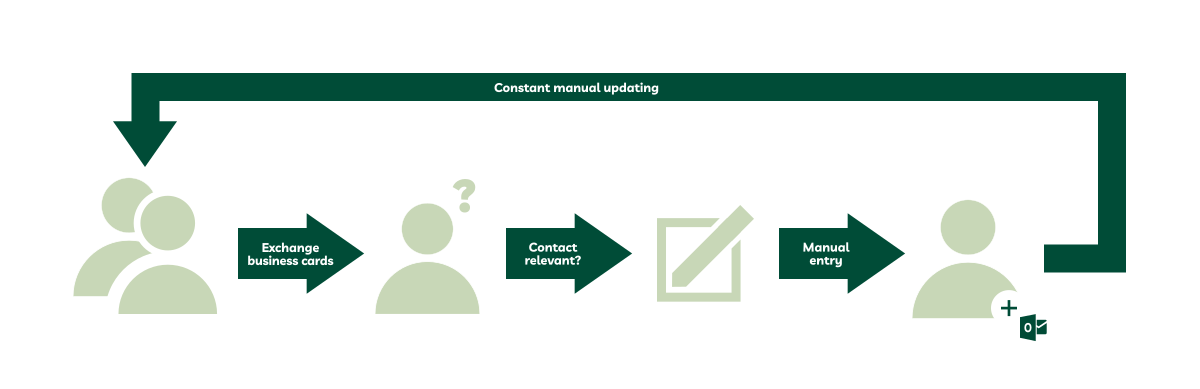
Mr. Smith works in sales and wants to spend as little time as possible maintaining his address book, without letting the quality of his contact data suffer. Until now, he has followed a fairly typical process:
- A business card is exchanged during an in-person meeting
- Mr. Smith decides whether the contact is relevant for his Outlook address book
- The information from the business card is manually entered and saved in Outlook
- From time to time, he checks whether contact details are still up to date and adjusts them if necessary
This approach involves a considerable amount of manual work. Beyond the time investment, another major issue is the lack of standardization and consistency in the data. When contacts need to be entered quickly, data quality often drops—phone numbers and addresses end up stored in different formats, and errors creep in. Because of the effort involved, sales reps also tend to capture only the most promising contacts. Others that may not seem immediately relevant are often ignored and lost altogether.
Scanning Business Cards Directly Into Outlook.
This process can be handled far more efficiently with digital tools such as business card scanners. These are available both as physical devices and as mobile apps. Given faster update cycles and the flexibility of not being tied to dedicated hardware, mobile app–based solutions generally make more sense.
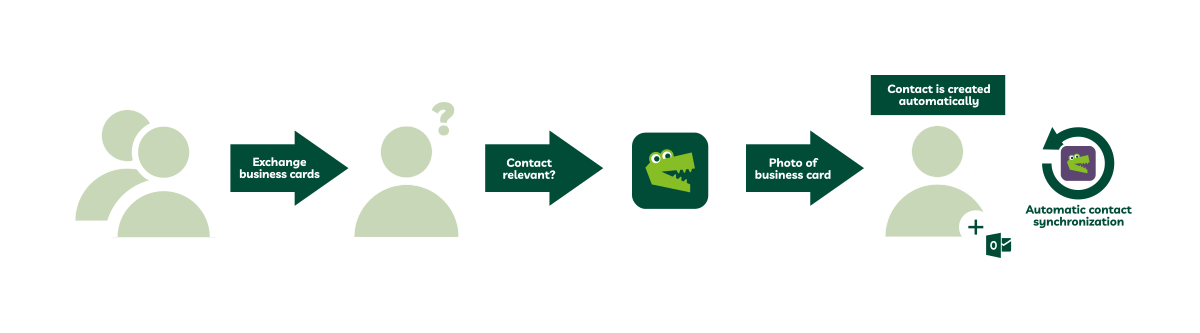
With these tools, a business card is photographed using a smartphone or tablet. The software analyzes the image, extracts the contact details, and transfers them into the Outlook address book with a single click. Using a digital business card scanner, the process looks like this:
- A business card is exchanged during an in-person meeting
- A decision is made as to whether the contact is relevant for the Outlook address book
- Mr. Smith scans the business card by taking a photo
- Within the tool, the image is converted into text and checked for contact details
- With one click, the contact is then saved to the Outlook address book
Keeping Contacts Up to Date Automatically with snapAddy DataAgents.
If you don’t rely solely on business cards to populate your address book but also exchange emails regularly with your contacts, snapAddy DataAgents can be a useful complement to a business card scanner.
The application automatically analyzes email signatures in incoming messages and generates contact or update suggestions based on the existing data in your address book. For example, you’ll be notified when a contact’s job title changes and can apply the update to your Outlook address book—or directly to your CRM system—with a single click. This helps keep contact data current without adding manual effort.